
Welcome! Guest
[ Login ]
8 Sep, 2008
Home | Customer Centre | Support Centre
RSS | Set Homepage | Favorite
Search:
Browse:

Microsoft Outlook Setup Tutorial

Date Created: 6 Mar, 2007 Viewed: 695 Rating: 

Overview

In this tutorial we will learn how to setup MS Outlook for use with your new hosting email account.

What you will Need:

  • A valid email account, if you haven't created an email account yet please log into your Control Panel and set up an email account.
  • An email client. This tutorial uses Outlook, which is part of Microsoft Office.
The above information is for reference only

Guide

Step 1

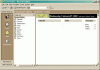
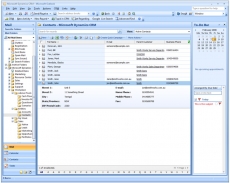
When you first start Outlook, you see a folder list on the left and a message or contents list on the right. For example, if I wished to work with my contacts I would click on the contacts button on the left and it would appear on the right ready for me to make changes.

To setup your POP email account we will need to be in a different area of the program. Click "Tools" to open the next window.
Step 1
Click to Enlarge
Step 1

Step 2

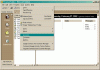
Once you click on "Tools" a menu drops down. Look for "Accounts" in this menu.

If you have an older version of Outlook you may have an entry for "Services" instead. This tutorial does not cover how to setup those versions of Outlook. Most likely you will see "Accounts" in the list.
Step 2
Click to Enlarge
Step 2

Step 3

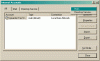
You are now in the Internet Accounts dialogue box. On the right you will see an "Add" button. Click it and a small option box will pop up as pictured below. One of the options in this box is "Mail." Notice that there is also a tab labeled "Mail." We are looking for the entry in the option box, not the tab.
Step 3
Click to Enlarge
Step 3

Step 4

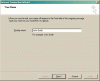
You are now in the Internet Connection Wizard. Enter your name in the blank provided.
Whatever you type here will appear in the "from" line of every message you send with this account.
Step 4
Click to Enlarge
Step 4

Step 5

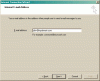
This is the second screen of the Connection Wizard. Enter your email address in the space provided.
Step 5
Click to Enlarge
Step 5

Step 6

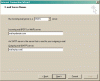
This is the third screen of the Connection Wizard. This is where you type the name for your incoming server. If I owned johnsmith.com and setup email accounts for it, the name of my incoming mail server would be mail.johnsmith.com. Just add "mail." to the front of your domain name..

Then enter the outgoing mail server in the second blank. This is the outgoing mail server for your ISP, ie if you are with netvigator.com your outgoing mail server would be mail.netvigator.com
Step 6
Click to Enlarge
Step 6

Step 7

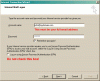
Here you enter your account name and password. Note your account name is your full email address.
Step 7
Click to Enlarge
Step 7

Step 8

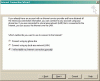
If you would like Outlook to dial out to the Internet on its own choose the first option. If you are on a LAN choose the second. Select the third option if you do not want Outlook to try to connect on its own.
Step 8
Click to Enlarge
Step 8

Step 9

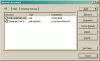
We have now entered everything Outlook will need to check your email account. It is now included in the list.
Step 9
Click to Enlarge
Step 9
Was this article helpful?
Permalink:  
 
ec2Biz.com Interactive Multimedia Ecommerce Online Shop Solutions
©2008 Focus Network Company. All Rights Reserved.